Are you looking to import your Outlook Data File (.pst) to cloud applications like Office 365 to access them from anywhere and anytime? If yes, then you landed on the right page. In this blog, we have explained a method to import a PST file to an Office 365 account.
PST is the Outlook Data file that stores emails, contacts, calendars, tasks, notes, etc. This file format is used for backup purposes and in transferring data from one computer to another. This file is generated when you configure Outlook with the POP3 email account.
Office 365 is now known as Microsoft 365, is a cloud-based application that can be used for emailing, which can be accessed from anywhere and anytime with the help of the internet. Microsoft, with Office 365, provides other applications like Word, Excel, PowerPoint, etc in its subscription suite.
Why import PST to an Office 365/Microsoft 365 account?
There are a few advantages of importing a PST file to Office 365.
Accessibility: The Outlook PST file is stored locally on the computer that is accessed with the desktop computer, whereas in Office 365, users can access the PST file from anywhere and anytime on multiple devices with the help of the internet.
Free up storage space: By moving the PST file to Office 365, users can free up storage space on their local computer.
Other services: With an Office 365 subscription, apart from Outlook, users get other applications of Microsoft, such as Word, Excel, PowerPoint, OneDrive, etc.
Cloud storage: With Office 365/Microsoft 365, users get cloud storage that can be used to store emails, contacts, calendars, and other data. The cloud data accesses at anytime and on any device with the help of the internet.
Also Read: How to Extract Attachments from PST files without Outlook?
How to import a PST file to Office 365 automatically?
The smart and effective solution to import a PST file to Office 365 is to use eSoftTools PST to Office 365 migrator software. The tool allows users to migrate any version of Outlook PST files to an Office 365 account easily and with a few simple steps. This tool imports a PST file containing emails, contacts, calendars, tasks, notes, etc to an Office 365 email account.
The software only needs the Office 365/Microsoft 365 account credentials for migration. This tool is compatible with all editions of the Windows operating system, like Windows 11, 10, 8.1, 8, 7 & below versions. The company provides a free demo version in which 25 emails from each PST folder migrates to the Office 365 account.
Step by Step procedure with screenshots
- Download and install the eSoftTools PST to Office 365 migrator software on your Windows PC.
- Click on the Select PST button and browse the PST file location.

- Click the Start Scanning button and load all the files & folders of the PST file.
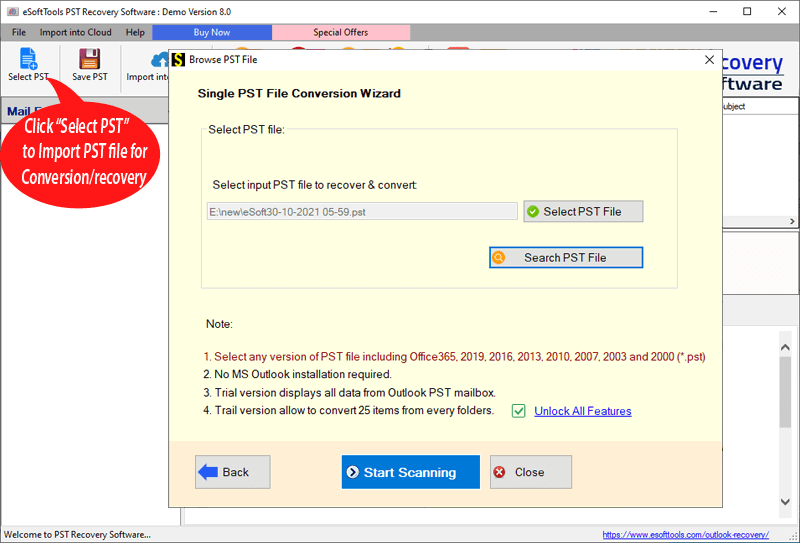
- Preview all emails, files & folders of the PST file in the preview panel.
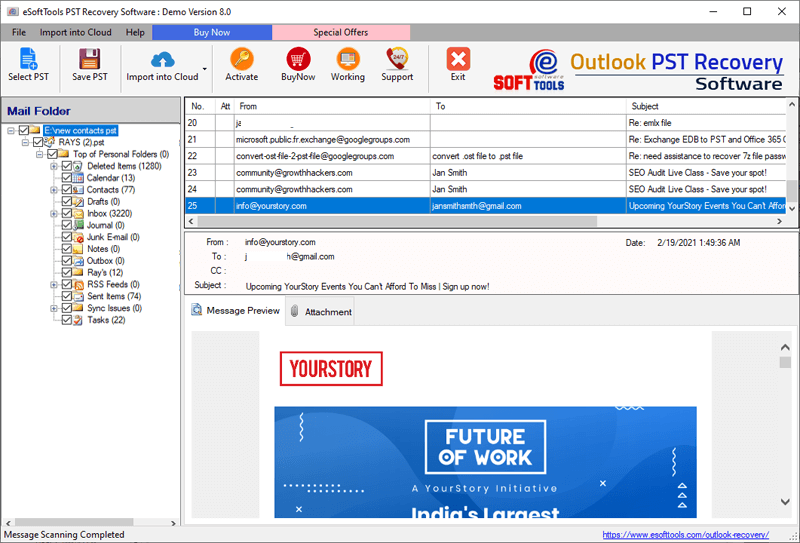
- Select the files & folders and click on the Import into Cloud button on the menu bar.
- Choose the option Import to Office 365 and click the Next button.
- Enter Office 365/Microsoft 365 email address and Password.
- Apply the Mail filter feature (optional) if you want to filter emails by Date.
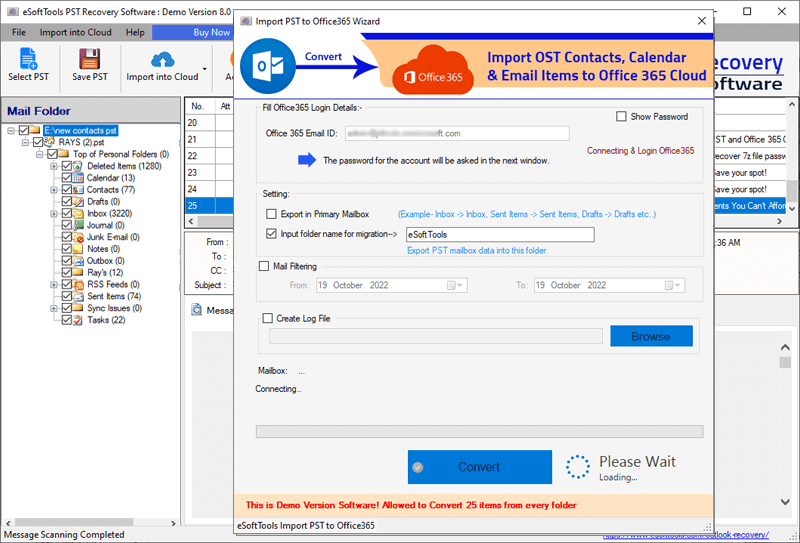
- At last, click the Convert button, and the migration process will start.
FAQs
Q. Can I upload multiple PST files to an Office 365 account?
Ans. Yes, the user can upload multiple PST files to an Office 365 account by using the bulk conversion mode of eSoftTools PST to Office 365 migrator software. In bulk conversion mode, multiple PST files are loaded into the software.
Q. Does importing PST files preserve folder structure and email metadata properties during migration?
Ans. Yes, the software preserves the folder structure and email meta properties like To, cc, bcc, subject, Sender and Recipient information during migration.
Q. Does the same tool also migrate PST files to Gmail and IMAP email accounts?
Ans. Yes, eSoftTools PST to Office 365 migrator software can migrate PST files to Gmail and IMAP email accounts.
Q. Can I filter emails according to Date with this software?
Ans. Yes, the tool provides the email filter feature that filters emails according to Date by specifying the Date Range (From and T0).
Q. Is Outlook installation necessary for importing PST to Office 365?
Ans. No, with this tool user doesn’t need to have a Microsoft Outlook installation for importing PST to Office 365. User just need to have PST files stored on their computer.
Conclusion
Migrating PST files to Office 365 provides numerous benefits of cloud email management, like 24 x 7 accessibility, cloud storage, etc. There are manual methods also available, but they are not suitable for large PST files. The eSoftTools PST to Office 365 migration tool can migrate the large PST files to Office 365 with a few clicks. The professional tool simplifies the process of migration and provides other features like email filtering, maintains email meta properties, folder structure, etc.


No Comments yet!