Would you like to save your IMAP email folders to your local drive as MBOX files? It is now quite simple to do. Read through this blog post to discover the best method for Download & Export IMAP mail folder to MBOX files.
Overview
Nowadays, a lot of users are utilizing webmail applications that run on the IMAP protocol. Gmail, Yahoo Mail, Office365, and several well-known IMAP-based mail apps are among them.
IMAP (Internet Message Access Protocol) enables users to access their email accounts without needing to download them to a local device. Additionally, users of IMAP-based cloud mail applications can conveniently check their emails simultaneously from various locations.
IMAP mail apps let users easily handle their email accounts using a web browser. All users need is an internet connection to access their emails from an IMAP server.
However, internet outages can prevent users from accessing email from their IMAP accounts. For this reason, users prefer to save their IMAP account emails in MBOX files on their local drives.
Also Read:- How to Export IMAP to a PST Outlook File?
Direct Method to Download & Export IMAP Mail folder to MBOX files
eSoftTools IMAP Backup & Migration Tool is a powerful and effective utility for exporting IMAP mail folders to MBOX files. With this smart solution, users can easily download all emails from their IMAP accounts to their local drive. From mail folders in single and multiple IMAP accounts to MBOX files, users can export emails in a single process. Furthermore, this software offers several advanced options to make this IMAP email backup process even easier and more reliable.
How to Download & Export IMAP Mail folder to MBOX files?
- First, download, install, and run the eSoftTools IMAP Backup software on your computer.
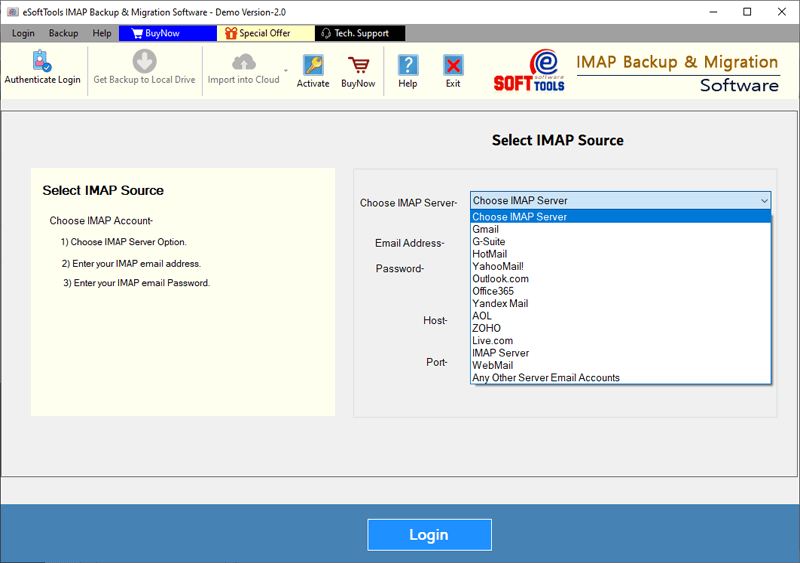
- Select your preferred email app from the list provided.

- Provide your IMAP account’s email address, password, port, and hostname.
- Enter the required details, click Login, and wait for all mail folders to load.

- Choose the necessary IMAP account mail folders from the mail folder list.
- Select an option below to save mail folders as MBOX files: Single MBOX, Separate MBOX.

- Pick a location on your computer to save the final MBOX files.
- Set up the date-based email filtering and then click the Save Backup button.

Advanced features of IMAP Backup and Migration Software
- In just a few clicks, download emails from all IMAP-based webmail apps.
- Extract emails from mail folders of the same or multiple IMAP accounts simultaneously.
- Back up your IMAP account emails into MBOX, PST, EML, EMLX, MSG, MHTML, and various other formats.
- This provides the ability to filter and export emails from a particular date using an IMAP server.
- Use the naming option to save the resulting email files with custom names.
- It allows users to choose their desired location to save the resulting files.
- It is compatible with all IMAP-based email applications such as Gmail, Yahoo, Outlook.com, Office365, and others.
- It supports every Windows version from past to present, including Windows 11, 10, 8.1, 8, 7, XP, Vista, and others.
Conclusion
It is often helpful for users to Download & Export IMAP mail folders to MBOX files. We have shared the best approach for this in the blog post. Users can now save their IMAP mail folders as MBOX files simply by following the steps mentioned above.


No Comments yet!