Many users are switching from Office365 to Yahoo Mail. Are you one of them and looking for a reliable solution to transfer Office365 mailbox data? If so, read this article to find the best solutions. Here, we’ll show you how to migrate an Office365 mailbox to Yahoo Mail.
Overview
Microsoft provides Office 365 as one of its services to users. By subscribing to Office 365, users can use MS Office suite applications from the web. Outlook is also available on Office 365, which we know as Outlook 365.
With Outlook 365, users can efficiently send emails and perform other tasks like managing contacts and calendars. However, sometimes Office 365 users prefer to switch to Yahoo Mail. There can be several reasons for this.
Also Read:- How to Migrate from Office 365 to IMAP Mail Accounts?
Reasons for Office365 to Yahoo Mail Migration: –
- Office 365 is a paid subscription service. Meanwhile, the Yahoo Mail application is free for basic email.
- Yahoo Mail gives users 1TB of free storage space to store data. On the other hand, the free Office365 license only gives 5GB. (To get more Office365 storage, users have to spend extra money.)
- Some users choose to save their Office365 mailbox data in their Yahoo Mail account for backup purposes.
Automatically Migrate Office 365 Mailbox to Yahoo Mail
eSoftTools Office365 to Yahoo Mail migration software is the best solution for migrating Office365 mailboxes to Yahoo Mail. This software makes it easy to transfer mailboxes from Office365 to Yahoo accounts. This tool allows users to export selected folders or the entire Office365 mailbox at once. It helps migrate all data from an Office365 mailbox, including emails, contacts, calendars, tasks, notes, and more. It migrates all data in its original format and with complete information.
How to Migrate Office365 Mailbox to Yahoo Mail?
- Download and open the Office365 to Yahoo Mail Migrator on your computer.
- Select the “Office365” option from the drop-down list of mail apps.
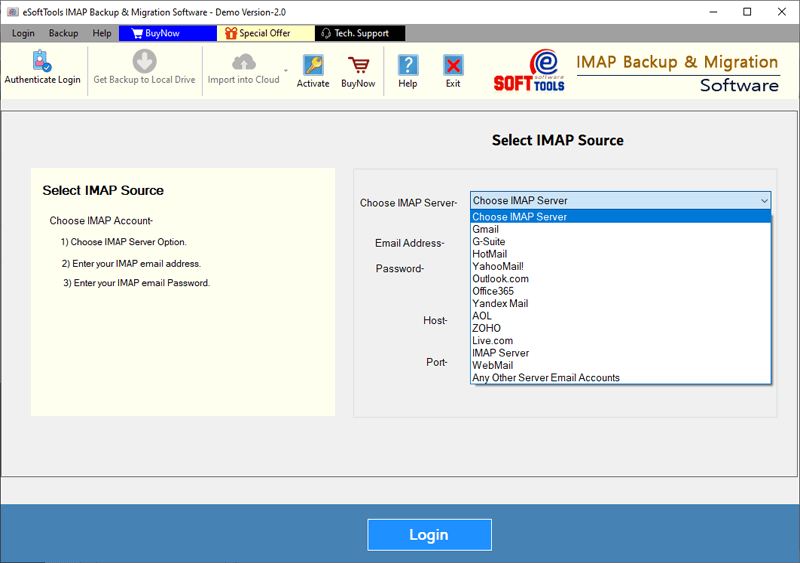
- Enter the email address of the Office365 account and click Login.
- Sign in using your Office365 account and load all mailbox folders.

- Select the required mailbox folders and click Import to Cloud.
- Choose the Import to Yahoo option and click Next.

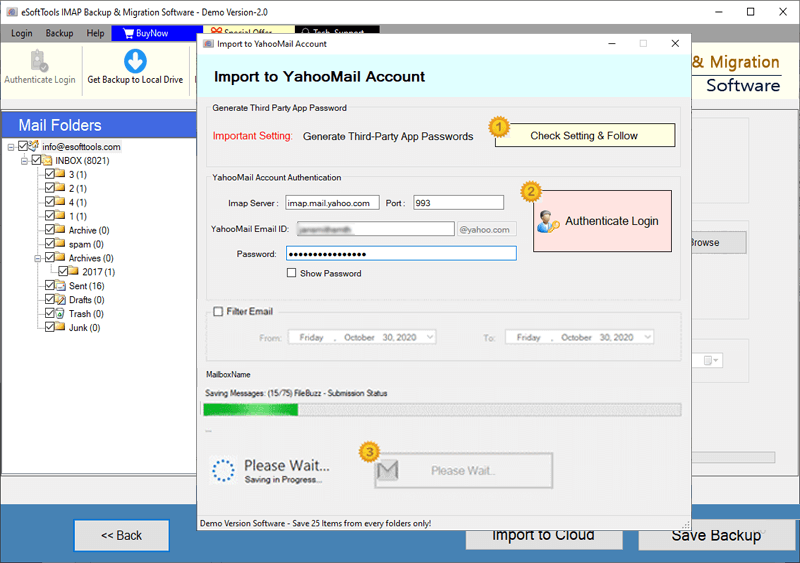
- On the next screen, log in with your Yahoo Mail account information.

- Click the Import to Yahoo account button to begin the migration.
Key Features of eSoftTools Office365 to Yahoo Mail Migration software
- Migrate your Office365 mailbox to a Yahoo Mail account in just a few clicks.
- Choose and export specific folders from Office365 mailboxes.
- Transfer all Office365 account mailbox items, including all pertinent information.
- Use the date filter option to move emails within a specific date range.
- The interface is clear and intuitive, making migration straightforward for users.
- This feature is compatible with all Windows operating system versions – Windows 11, 10, 8.1, 8, 7, XP, Vista, and lower.
Conclusion
Migrate Office365 Mailbox to Yahoo Mail has many benefits. That’s why many Office365 users are considering switching to Yahoo Mail. In this article, we’ve outlined the best way to do this easily. For best results, follow the steps above and use the eSoftTools Office365 to Yahoo Mail migration tool.


No Comments yet!