Do you have an MSG file on your system that you need to open in Thunderbird but do not know how to do it? Looking for an appropriate solution for this query? Then, you do not need to worry. In this blog, we have written a professional method to import MSG files to Thunderbird.
Thunderbird is an open-source email client and does not support MSG files. MSG files are supported by MS Outlook. To open an MSG file in Thunderbird you have to convert to EML file format. To convert MSG files to EML file format you have to use a professional method to do this.
Read More: How to Export/Convert OST to MSG files?
Professional Method to Import MSG to Thunderbird with Attachments
In the professional method, we use third-party software eSoftTools MSG Converter software to import MSG to Thunderbird with Attachments. It allows you to convert MSG files to different file formats like EML, EMLX, MSG, MBOX, PST, HTML, MHTML, PDF, NSF etc. You can directly export MSG files while maintaining data formatting and data hierarchy. Software can export emails with attachments, calendars, contacts, etc. It allows you to import MSG files to cloud-based applications such as Gmail, Yahoo Mail, Office 365 and Outlook.com.
It offers the following features
Preview Panel: In the preview panel you can view the files/folders in the tree hierarchy and can select the files/folders to convert to other file formats.
Naming convention: In the naming convention you can save emails with different unique names based on subject, date and From.
Email filtering: In email filtering you can filter emails according to date by mentioning the starting and ending date from which you want to apply the filter.
Outlook Compatible: It can work fine with all Outlook editions such as Outlook 2019, 2016, 2013, 2010, 2007, 2003, 2000 and below editions.
Windows Compatibility: It is fitted with all editions of the Windows Operating System such as Windows 11, 10, 8.1, 8, 7, Vista, XP and older versions.
By following the steps you can easily convert MSG files:
- Download, install and launch eSoftTools MSG converter software in your system.
- Select MSG folder option and load MSG files into the software from the local drive.
- You can preview all the files/folders of the MSG file in the tree structure in the preview panel
- Select the file you want to convert from the list of conversion options like- PST, EML, EMLX, MBOX, MSG, NSF, PDF, etc.
- Select and apply the email filtering and naming convention feature if you want.
- Browse the location to save the resultant Output file to your desired location.
- At last, click Convert MSG and start the conversion process to convert MSG to the chosen file format.
Conclusion
When you want to import an MSG file into Thunderbird you can do this by converting MSG files into EML files. You can do this by using professional software eSoftTools MSG converter software.
Steps to know how to import MSG to Thunderbird with Attachments
Step1: Download the Software

Step2: Open the Software and select the file

Step3: Scanning the MSG file
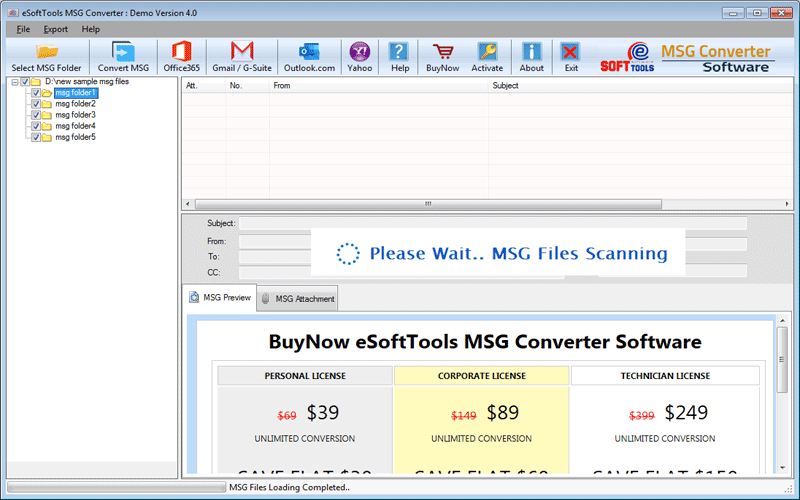
Step4: Preview the data of MSG file

Step5: Select the Export option

Step6: Choose the Saving and Setting options:
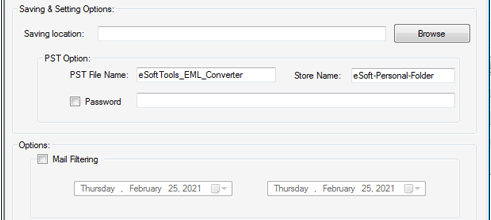
Step7: Scanning Process has been started

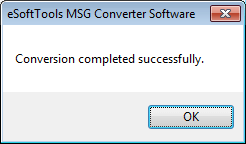
Step8: Conversion Completed Successfully


No Comments yet!