Regardless of the size of your business organisation, everyone needs an email application to maintain workflow. Office 365 is now used in many organisations for routine work. Protecting Office 365 data has become important. In this blog, we have written an automated method to save Office 365 emails to desktop.
Office 365- Overview
Office 365 offers various applications for professional and personal requirements such as Word, Excel, PowerPoint, etc. in its office suite. It is a cloud-based application that can be used from anywhere and on any device. Due to this reason, many organisations are investing in Office 365.
Many working professionals and users want to keep their data protected from any attack or malicious activity. This is why they want to keep their data from Office 365 on a local drive or a desktop.
Benefits of saving Office 365 emails to Desktop or Hard Drive
Before discussing how to save Office 365 emails to a desktop or Hard Drive we are discussing the benefits of it.
- Offline access: By saving data of Office 365 on a Hard drive you can access data offline. You can access the data even in places where an internet connection problem exists.
- Data security: Cloud-based data is always at risk because of virus attacks or malicious activity, while data kept on a Desktop is safe and secure.
- Data Recovery: In case of accidental deletion of Office 365 data, you can easily recover your data because the backup is available on a Desktop or Hard drive.
- Easy and cost-efficient backup: A hard drive is an easy and cost-efficient backup available. It can store large volumes of data.
Best software to save Office 365 emails to Desktop
The best software to save Office 365 emails to a desktop is eSoftTools Office 365 Backup Software. It is an effective and simple solution to your problem of How to Save Office 365 emails to the Desktop.
Key Features of eSoftTools Office 365 Backup Software:
- Custom Save Locations: Save emails to any desired folder on your desktop or local drive.
- File Format Flexibility: Export emails in formats such as EML, EMLX, MSG, MBOX, NSF, HTML, PDF, and more.
- Email Filtering: Filter emails by date range to export only the ones you need.
- Preview Panel: View mailbox items like emails, contacts, calendars, and tasks before exporting.
- User-Friendly Interface: A Simple GUI ensures that anyone can easily use the software.
- Wide Compatibility: Supports all Windows operating systems, including Windows 11, 10, 8.1, 8, 7, Vista, XP, and earlier versions.
Steps to Download Outlook 365 Emails to Desktop
- Download and Install: Start by downloading and installing eSoftTools Office 365 Backup Software on your system.
- Log In: Enter your Office 365 account credentials in the software and click the Login button.

- Select Mailbox Items: Load the mailbox files and folders, then select the items you want to download.

- Choose File Format: Select the desired file format for saving emails, such as PST, EML, MSG, MBOX, PDF, etc.

- Apply Filters: Use the email filtering option to export emails from a specific date range.

- Specify Save Location: Browse and choose the location on your desktop to save the output files.
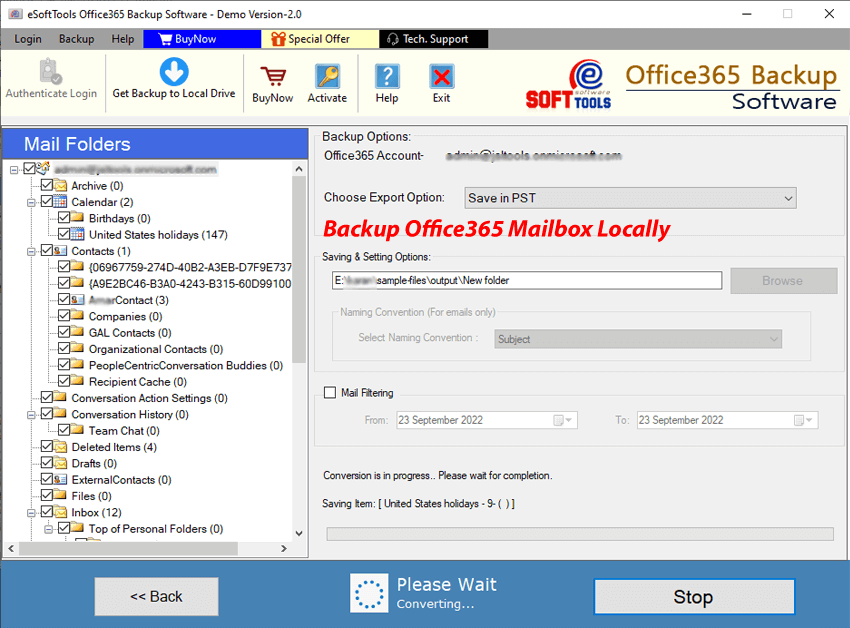
- Export Emails: Click the Save Backup button to begin downloading emails and other mailbox items like contacts, calendars, and tasks.
Conclusion
In this blog, we have explained the automated method to save Office 365 emails to Desktop. It is the easiest and reliable method and there are manual methods available but they are complex and require technical expertise to do the task. In the demo version, you can save 25 emails of Office 365 to your hard drive. If you are once satisfied with the software, you can purchase the full licence of the software.


No Comments yet!