Duplicate emails cause size-related issues and clutter the mailbox. Do you want to delete/remove duplicate emails from MBOX files? If yes, then you are on the right page. In this blog, we have written an automated method to remove duplicate email from MBOX files.
Overview
MBOX is a popular file format for storing email messages and attachments. It stores all the emails and attachments in a single text file.
Email clients like Mozilla Thunderbird, Opera Mail, Eudora, and more support MBOX files.
One problem with the MBOX file is duplicate emails. These duplicate emails clutter the MBOX files and take up space. They appear in the MBOX file for various reasons.
If you are facing the same problem, then managing the MBOX files is an important issue.
The benefits of removing duplicate emails from the MBOX file
Storage optimization: Duplicate emails occupy unnecessary storage space. By deleting duplicate emails, you can free up unnecessary storage space occupied by duplicate emails.
Enhance searchability: With fewer emails, you can search for emails more accurately. You can find emails accurately and quickly by deleting duplicate emails.
Improved performance: A clean mailbox can enhance the overall performance of the email client. With fewer emails in the MBOX email client can make the email client function faster and more smoothly.
Best method to delete/remove duplicate emails from MBOX files
The best method to delete/remove duplicate email from MBOX files is eSoftTools MBOX duplicate remover tool. This is the most advanced and reliable tool to remove duplicate emails from MBOX files. With the help of this tool, you can easily delete/remove duplicate email from MBOX files.
Also Read:- How to Import MBOX File to IMAP Server?
Salient features to delete/remove duplicate emails from MBOX files
- Smartly remove duplicate emails from single and multiple MBOX files at once.
- Provides 3 options for adding files into the software- Select MBOX file, Select MBOX folder, and Auto-load Thunderbird profile(only for Thunderbird users).
- Directly open the MBOX files in the software and check their duplicates.
- Search and delete duplicates with two options- “Within MBOX file” & “Across all selected MBOX files”.
- Enable the removal of duplicate emails date-wise with the date filtering option.
- Choose the path of the resultant MBOX file(without duplicates) at your desired location.
- Perform de-duplication of MBOX files without any data loss.
- Remove duplicates emails from MBOX files and others type, like MBOX, MBX, MBS, MSF, etc.
- Compatible to run on any edition of the Windows operating system, like Windows 11, 10, 8.1, 8, 7, and below editions.
How to delete/remove duplicate emails from MBOX files
- Download and install the eSoftTools MBOX duplicate remover tool on your system.

- Click the Add file/folder button on the above menu bar and select the file adding option from the 3 options
- Single MBOX file– To add a single MBOX file to the software.
- Single MBOX folder– To add a single MBOX folder to the software.
- Auto-load Thunderbird profile– Auto-detect and load the Thunderbird profile in a single click.

- Preview the MBOX files/folders and select the files/folders that contain duplicates.

- Click the Remove duplicates button on the above menu bar to remove duplicates.

- Apply de-duplication settings like mail filtering by date and email field selection for searching.
- Select email duplicates search/delete from folder mode:-
- Search/remove within MBOX: One by one, search the duplicate emails within each MBOX file.
- Search/remove across all MBOX: At once, find the duplicate emails from all selected MBOX files.
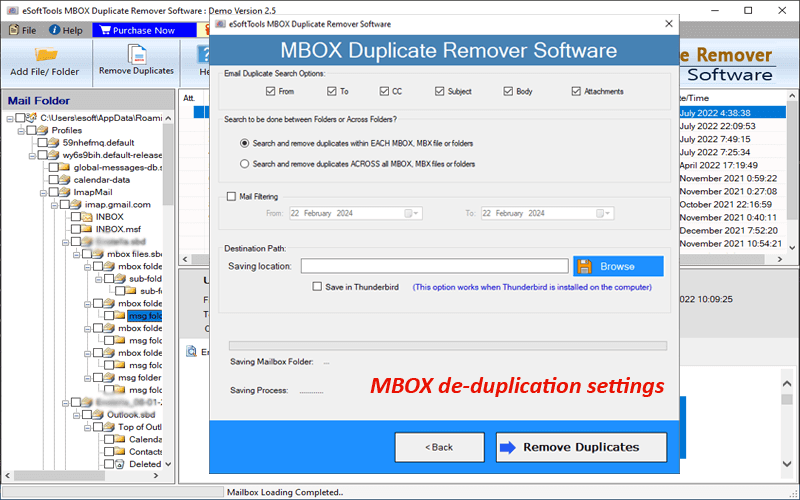
- Choose the saving location or choose the Save in Thunderbird option.
- At last, click on Remove Duplicates to start removing the duplicates.

Conclusion
Removing duplicate emails from the MBOX files is the optimal method to best utilize the disk space and it boosts productivity. Using the automated method, you can have a clutter-free email experience.


No Comments yet!