Looking for an easy way to transfer emails from an IMAP-based cloud or webmail app to your Google Workspace account? This blog post could be the best answer. In this article, we will show you how to Transfer/Migrate Emails from IMAP to Google Workspace.
Overview
IMAP, or Internet Message Access Protocol, is a standard protocol used for accessing and managing emails. Users are able to access their email accounts directly via a web browser using IMAP-based webmail applications, eliminating the need to install separate email client software.
Many well-known applications use the IMAP protocol, such as Gmail, Yahoo Mail, Office365, and others. Google Workspace is a comprehensive suite of productivity and collaboration tools. It includes various applications, and Gmail is a key component.
It provides numerous features and advantages for individuals and organizations, which is why many users today are looking to migrate from various IMAP mail apps to Google Workspace.
Also Read:- How to Export IMAP to a PST Outlook File?
Quick Method to Transfer/Migrate Emails from IMAP to Google Workspace
Use eSoftTools IMAP to Gmail migration software to effortlessly move emails from all IMAP mail applications to a Google Workspace account. Batch export emails from multiple IMAP mail folders without any data loss. Benefit from smart features and functions such as folder preview, custom folder input, folder selection, mail filters, and other capabilities, which streamline the email transfer process from IMAP to Google Workspace, making it simple and precise.
How to Transfer/Migrate Emails from IMAP to Google Workspace?
- Download and install IMAP to Gmail migration software on your Windows PC.
- Run the IMAP to Gmail Migration Tool and select your IMAP mail app.

- Enter your email address, password, port, and hostname for the IMAP account.

- Enter all IMAP account login information, then click the Login button.
- Load all mail folders from your IMAP mail account into the software.

- Choose the necessary mail folders and click the Import to Cloud option.
- Select ‘Import to Gmail’ from the cloud import options and click ‘Next.’

- Choose the ‘Import to G-Suite’ option and enter the login details for the Google Workspace account.
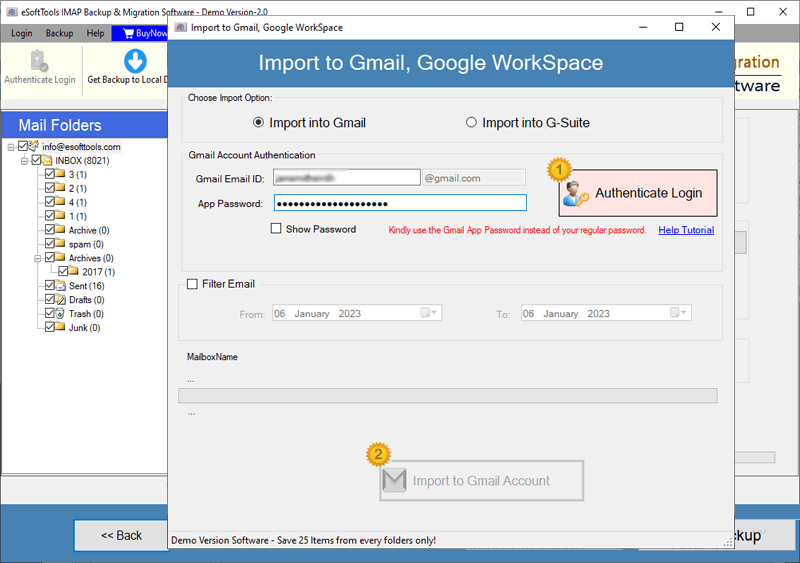
- Enter your Google Workspace email address and app password, and click ‘Authenticate Login’.
- Sign in using your Google Workspace account, then apply the mail filter settings.
- At the end, click the ‘Import to Gmail’ button and initiate the IMAP email migration process.

Smart features of eSoftTools IMAP to Google Workspace migration software-
- This software allows users to quickly perform IMAP email migration. This minimizes downtime and ensures a fast transfer of IMAP emails to Google Workspace.
- Data integrity is maintained during the email transfer process. It provides the ability to export emails and all other related data, including attachments.
- This software provides options to filter emails of specific dates and export only the required emails.
- This tool provides the option to select specific mail folders and allows exporting only the selected folders to Google Workspace.
- It supports migrating mail from all IMAP mail apps, including Yahoo Mail, Office365, Gmail, Outlook.com, Roundcube, Hoard Webmail, and more.
- This tool has a user-friendly interface, making it easier for users to complete the migration with less effort.
- It supports all versions of the Windows operating system, including Windows 11, 10, 8.1, 8, XP, Vista, and below.
Conclusion
Transfer/Migrate Emails from IMAP to Google Workspace is a significant step toward boosting productivity and teamwork within your organization. By following the steps outlined in this guide, you can complete the move rapidly. Ensure a smooth transition from various IMAP mail apps to Google Workspace. To quickly test the IMAP migration tool, all users can utilize its free demo version.
FAQ
Is it capable of exporting the entire data of an IMAP email account to Gmail in a single process?
Users can export entire mailboxes/mail folders from their IMAP account to Gmail at one time.
Is this software capable of migrating emails from an IMAP mail account, including complete metadata and properties?
This tool for sending emails from IMAP to Gmail allows you to export IMAP emails in their original format. It can export emails including attachments, recipients, BCC, sender, subject, date, message body, and other information.
During the IMAP mail folder export process, does this software help maintain the mail folder hierarchy?
This software exports mail folders from an IMAP account and saves them in a Gmail account while preserving the folder hierarchy.
Can I migrate mail folders from Zoho Mail to a Gmail account using this IMAP to Gmail Migrator?
With the help of this software, users can migrate emails from ZOHO Mail, Office365, Outlook.com, Yandex Mail, and all other IMAP-based mail apps.


No Comments yet!