Nowadays, many users import MBOX to Google Workspace because Google Workspace is based on the cloud and can be accessed anywhere and anytime. It is safer than any email client.
It stores all the emails of a Mailbox and their attachments in a concatenated way i.e. one after the other.
Why import MBOX to Google Workspace
- Better Accessibility: If you import all your data from mbox to Google Workspace, you can access your emails from anywhere and at any time.
- Device Flexibility: If you use Mozilla Thunderbird you save all your emails, calendars and attachments on the local computer.
- Better Security: Data on the cloud is safer than on the local machine because data on the local machine can get corrupted due to a virus attack.
- Enhanced applications: Google Workspace comes with better and more advanced productivity applications that can be used.
Methods to import MBOX to Workspace
- Manual Method
- Automated Method
Manual Method
- Download and install Mozilla Thunderbird on your system.
- Go to Settings and then to Account Settings.
- Then click Account settings and click Add Mail Account.
- Enter your account credentials and press continue.
- Configure your Google Account with IMAP settings.
- Then install the “ImportExportTools” Add-on in Thunderbird.
- Use Add-on Import MBOX to Thunderbird local folders.
- Drag and drop MBOX files from a local folder to the configured profile.
Automated Method
In the automated Method, you can use the eSoftTools MBOX to Gmail Converter software. You can load single and multiple MBOX files at a time. In the preview panel, you can see all the emails and other files, and select the files you want to migrate to Gmail/G-Suite. It has an easy graphical interface that non-technical people can use easily. It can work with all editions of the Windows operating system, such as Windows 11, 10, 9, 8.1, 8, 7, Vista, XP, and older versions.
Also Read:- How to Transfer Gmail to another Gmail account?
Steps to import mbox to Google Workspace
- Download and install eSoftTools MBOX to Gmail Migrator Software on your system.
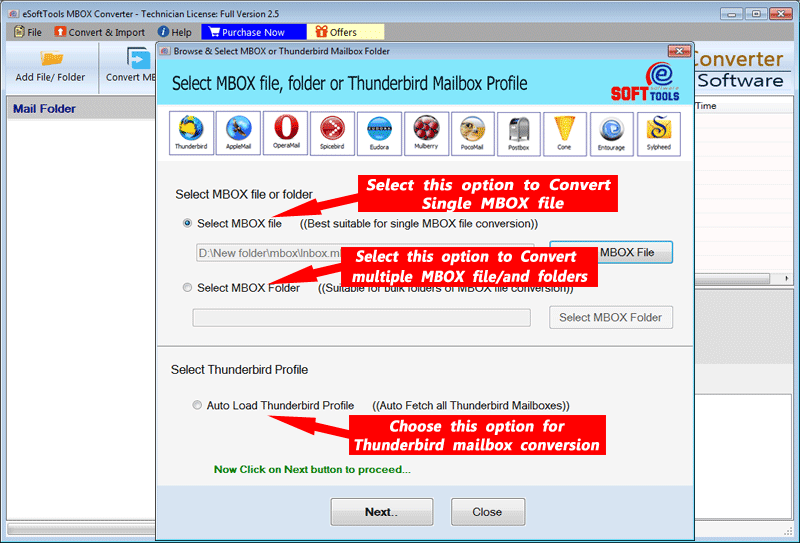
- Open and click the ADD File/ Folder button of the software at the start-up screen.

- Choose from the three options to load MBOX files into the software
- Single MBOX file: You can add a single MBOX file to the software.
- Multiple MBOX files: You can load multiple MBOX files in the software.
- Auto-detect MBOX file: The software will automatically detect MBOX files inside your system and load them into the software.
- After loading MBOX files in the software, you can click the Next button.
- Now software extracts the files and folders from MBOX files and gives a preview of the files and folders of MBOX files.

- Click on the Import to Gmail button on the menu bar.

- Now, enter your Gmail Login details and press the Authenticate Login button.
- After logging in, you can choose the Mail filter to select emails from the desired date.

- At last, click on the Import to Gmail Account button, and the migration process will start.
Conclusion
If you are worried about importing MBOX files to Google Suite then you can read this blog. Home users can use the manual method but for working professionals. In the demo version of eSoftTools MBOX to Gmail Migrator Software you can transfer 25 files from each MBOX folder.


No Comments yet!