Many users want to import contacts from Windows Live Mail to Thunderbird, but they face a lot of problems in doing so. In this blog, we will tell you the solution to import contacts from WLM to Thunderbird in just a few clicks.
Import Contacts from Windows Live Mail to Thunderbird
To import contacts from Windows Live Mail to Thunderbird, you can use the help of the eSoftTools Windows Live Mail Contacts Converter tool. With this, you can import contacts from your WLM to Thunderbird without any problem and without losing any data, that too in just a few clicks. This is the best option to import WLM to Thunderbird.
Best Features of Windows Live Mail Contacts Converter
- Import contacts from WLM to Thunderbird in just a few clicks.
- Convert Windows Live Mail contacts to Outlook PST, MSG, CSV, and vCard file formats.
- It safely converts Windows Live Mail Contacts. EDB files into various formats.
- A clear and graphical user interface for users to easily perform the WLM contacts conversion process.
- This software is safe, so you can import Live Mail contacts without losing any data.
- This software works on every version of Windows O/S, like 11, 10, 8.1, 8, 7, Vista, XP, and older versions.
Also Read :- How to Export Email from Windows Live Mail to MBOX Files?
Steps to Import Contacts from Windows Live Mail to Thunderbird
- Download the eSoftTools Live Mail Contacts Converter Software.
- Run this application on your PC, and choose “Choose the default location of contacts. edb file”, automatically detect the WLM contacts file, and then click on the Next button.

- Now the software will show you the preview of all contact items, select the required items from it, and click on the Next button.
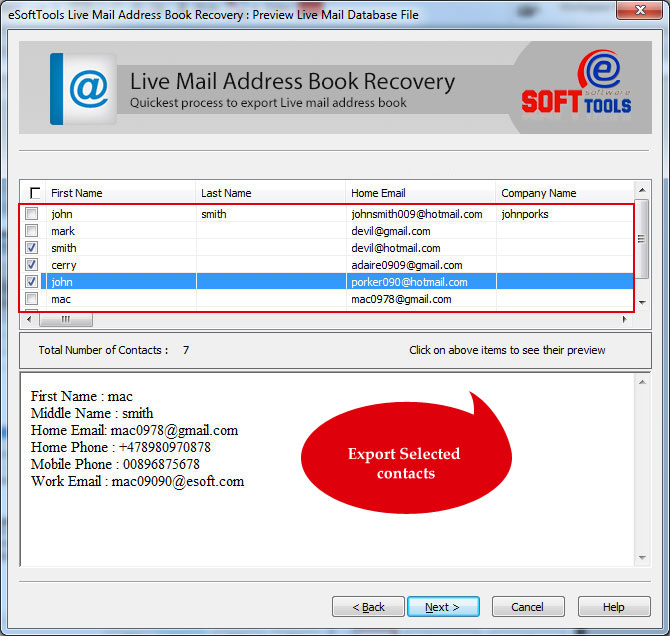
- Now a new window will appear on the screen with multiple file format options. From this window, click on the Export to CSV file option.

- Select a location to save the imported contacts of Windows Live Mail and click Next to start the import process.

- Now this process will only take a few minutes.
Stage 2:- Import CSV file to Thunderbird
- Open the Mozilla Thunderbird email client.
- Now, click on the Address Book option.
- Now click on Tools >> Import >> Address Book and click on the Next button.
- Select the Text file option and again click on the Next button.
- Go to the location of the CSV file created earlier and select the file, and then click on the Open button.
- Select the required address book fields and then click the OK button.
- Now the import process is complete.
Conclusion
In this blog, we have provided quick solutions to import contacts from Windows Live Mail to Thunderbird. Users can try this method to ease the export process of Live Mail contacts without facing any kind of error. Also, you can try the free demo of this software


No Comments yet!