Summary: This blog describes the methods to move OST file location in Outlook 2016. It describes the best manual and automated approaches to migrate OST files to PST files. You can try a free demo version of the third party tool in the automated method.
OST (Offline Storage Table) files are offline email files for MS Outlook that are opened in the Microsoft Outlook email client when there is no internet connection. Offline OST files are synchronized with the Exchange server whenever the internet connection is established. OST files do not damage easily. When the Exchange server crashes due to a virus attack or any malicious activity on the server, the OST files are not able to synchronize with the Exchange server and become orphans and get corrupted. The corrupted OST files are recovered by converting them to PST files. Next, explore the manual and automated methods to change the OST file location in Outlook 2016.
Also Read:- How to import an OST file in Outlook Office 365?
Methods to move OST file location in Outlook 2016
- Manual Method
- Automated Method
Manual Method
You can export OST files to PST files with different manual methods but here we have described one of them.
Import/ Export Method
1. Open MS Outlook Software.
2. Go to File menu and then to Option & Export >> Import/Export option.
3. Then choose the ‘Export to a file’ option and click the ‘Next’ button.
4. Then choose ‘Personal file folder (.pst)’ and click ‘Next’.
5. Then select the folder you want to backup and include the subfolders and click ‘Next’.
6. Browse the location where you want to save and then click Finish.
Automated Method
For the automated method, use third-party software like eSoftTools OST to PST Converter. In this software you can convert multiple OST files to PST files. In the preview panel you can see the files and folders of the OST files and you can check and uncheck the files/folders that you want to convert into PST files. Not only can you move the OST file location in Outlook 2016, but you can split the large-size OST files into multiple small-size PST files in this tool. In addition, filter emails by entering a start and end date. The software filters them according to that date range. The graphical interface is so user friendly that non-technical people can use it easily. In a few steps you can convert OST files to PST files.
- Launch the software on your computer and click the “Select OST” button.
- Add OST files from local drives and load them in the OST Converter.
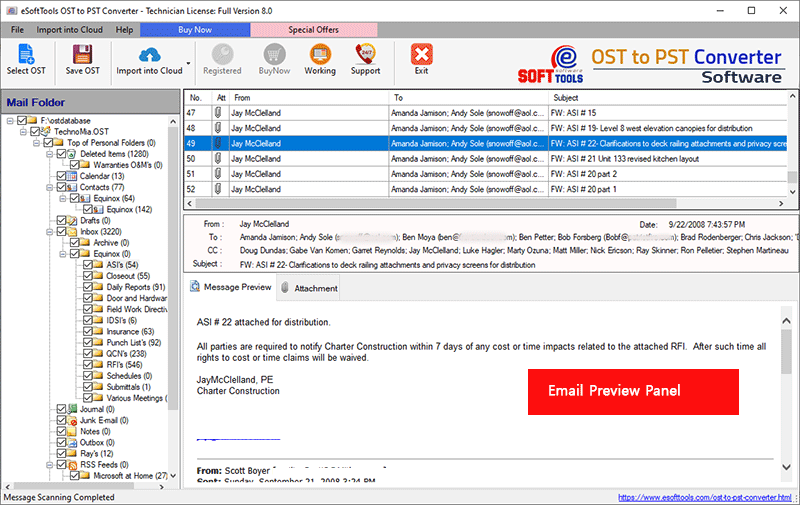
- In the side panel you can preview imported OST files and folders.
- Select necessary mailbox folders from OST files for exporting them.
- Press the ‘Save OST’ button and select the ‘Export to PST’ radio button from the OST conversion options.
- If you want to split an OST file select ‘Split PST’ option and choose a size from different size ranges.
- Browse the location where you want to save the PST file into your computer.
- Choose the ‘Mail Filter’ option if you want to filter email (based on date).
- Click on the ‘Convert’ button and begin the process of OST to PST conversion.
Conclusion
Now you know both manual and automated methods but there are some limitations in the manual method. Compared to automated methods, manual methods are complex and there are chances of data loss in the manual method. Not only technical knowledge is required in the manual method but a lot of attention is needed. Therefore, keeping all factors in mind it can be concluded that using a third party tool eSoftTools OST to PST Converter Software is the most reliable solution for move OST file location in Outlook 2016.
See How to Convert OST file to PST file:-
Step1: Finally, download eSoftTools OST to PST Converter Software and launch the Software
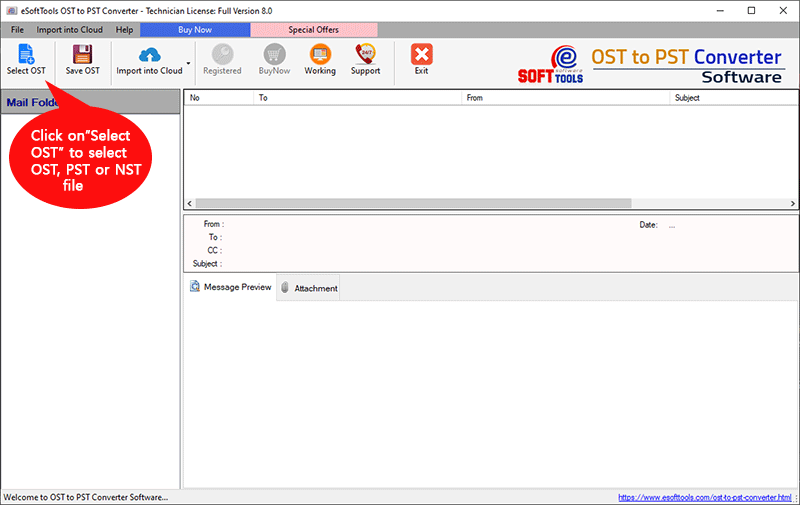
Step2: First, choose a conversion mode and add OST files

Step3: Select the OST file
Step4: Scanning Process completed
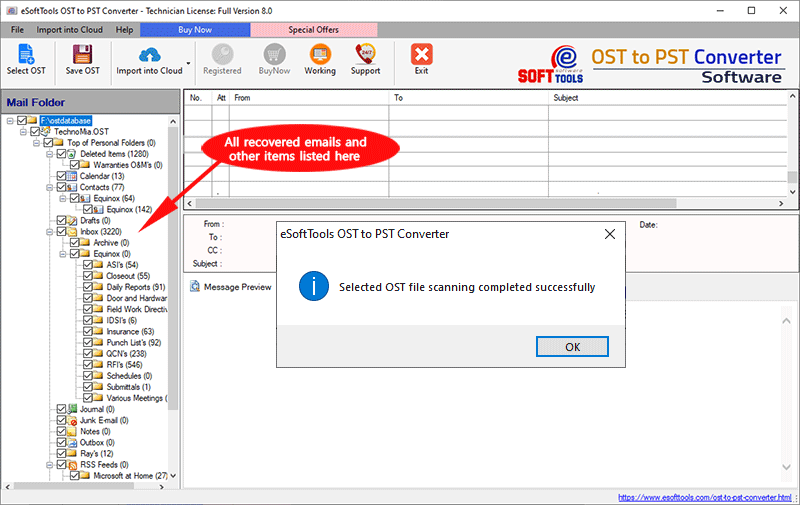
Step5: Next, get a preview of the OST file
Step6: Choose conversion options:-

Step7: Save OST file at desired location

FAQ Related OST Converter Software
A: Yes, our software is compatible with all versions of MS Outlook.
A: Yes, this software splits OST files into PST files very easily.
A: Yes, our software is user-friendly. Moreover, our team is always available for support.


No Comments yet!