Do you need to import mbox file to Outlook 365 and do not know how to do this? Then read this blog and you will know methods to import MBOX files to Outlook 365.
What is an MBOX file?
MBOX files are the files in which emails are stored in a concatenated way. In this, all the emails of the mailbox are stored one after the other in a listed way. MBOX files are supported by Mozilla Thunderbird, Apple Mail, etc. MBOX stores the emails in ASCII format and attachments in other encoded ways.
Methods to import MBOX to Outlook 365
- Manual Method
- Automated Method
Manual Method
In the manual method, firstly, MBOX files are converted to EML files and then EML files are converted to PST files and then PST files are imported to Outlook 365 by logging into your account.
Save as EML
- Open an MBOX email client on your system.
- Open an MBOX file in an email client like Mozilla Thunderbird.
- Create a New Folder in any location on your computer.
- Now Drag and Drop the emails from MBOX files into the New Folder it will save emails as EML files.
Drag and Drop EML to Outlook
Access the New folder that stores EML files. Select the emails from the folder and Drag and Drop them into Outlook.
Export emails to PST
- Open Outlook
- Click on the File tab and then select Open & Export >> Import/Export.
- Select the option “Export to a file” and hit on Next.
- Now choose “Outlook Data File .pst” and press the Next button.
- Select the EML mailbox folder to export from.
- In the next step, select the destination for the output folder where you want to save PST.
- Lastly, press the Finish button and start the export process.
At last, you have to import PST files to Outlook 365 by logging to an Office 365 account details.
Also Read: How to Import MBOX file into Yahoo mail?
Automated Method
In the automated method, we will use eSoftTools MBOX to Office 365 converter Software to import mbox file to Outlook 365. Its graphical interface is easy to use and in a few simple steps, you can easily migrate MBOX files to Office 365.
Steps to import MBOX to Office 365
- Download and install eSoftTools MBOX to Office 365 migrator software.
- Add the MBOX file into the software.
- Single MBOX file– You can add a single MBOX file to the software.
- Bulk MBOX files- You can add multiple MBOX files to the software.
- Select Thunderbird Profile- Load all Thunderbird emails from Mailbox.
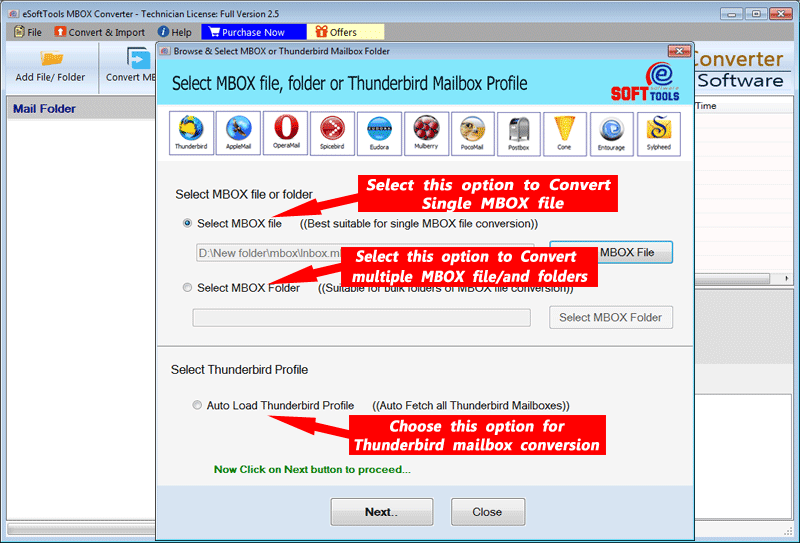
- After adding the MBOX files click Next.
- You can preview the files/folders of the MBOX file in the panel.

- Click the ‘Convert’ button and start the migration to Office 365.
Conclusion
You can use manual methods but they are time-consuming and complex. Instead of that use an automated method and use eSoftTools MBOX to Office 365 migrator tool to import mbox file to Outlook 365. The automated method is easy to use, 100% accurate and has less chance of data loss.


No Comments yet!