Lotus Notes is one of the email clients used to store emails offline. The user can access the emails when it is not connected to the internet. Additionally, it stores the user’s emails offline. Lotus Notes, also known as HCL Notes.
Do you need to export Lotus Notes Emails to EML file and don’t know how to do it? If yes, then read this blog and learn the manual and automated methods to convert Lotus Notes Emails to EML files.
Convert Lotus Notes Emails to EML files
- Manual Method
- Automated Method
Manual Method
Specifically, in Lotus Notes Software, we can convert Emails to EML files by two methods
Method 1: Save One email at a time
Also Read:- How to Export Lotus Notes Emails to MSG files?
- First, you can open and launch the IBM Notes software on your system.
- Go to the File menu.
- Then from the menu go to the Save As option.
- Browse the location where you want to save the file in your system.
- Name the file as you want.
- Click Ok and the file will be saved as an EML file.
Method 2: Drag and Drop
- Open and launch IBM Notes software in your system.
- Create a New Folder in your system.
- Open the NSF file in the IBM Notes software.
- Simply Drag each email from the NSF files and Drop them to the new folder.
- Each email will now have a separate EML file in your system.
Limitations of Manual Method
- Firstly, bulk migration is not supported- In the manual method each email is saved one by one into the EML files. Therefore, it is not possible in the manual methods to convert Lotus Notes emails into EML files in bulk.
- Leads to NSF file corruption- It leads to corrupt NSF files in between the conversion process whenever there is a power cut.
- Supported in Later IBM Notes version- This method is only applicable in IBM Notes 8.5 and later versions.
Automated Method
In contrast, in the automated method, we use third-party software eSoftTools NSF to EML converter software. Furthermore, with this software, you can easily know how to export Lotus Notes Emails to EML file and convert NSF files into other file formats such as MBOX, MSG, PDF, HTML, vCard, and ICS. Furthermore, with the help of this software, you can load single and multiple NSF files at a time. Additionally, in the preview panel, you can see the folders of NSF files in the tree format and each file in the side panel.
It preserves the metadata of emails such as To, CC, BCC, Subject, From etc. Moreover, data formatting and data integrity are maintained by this software. In this software, you have the feature to split large-size NSF files into multiple small-size EML files and you can filter emails according to date. Consequently, in a few steps, you can convert NSF files to EML files.
- To begin with, download and install eSoftTools NSF to EML converter software in your system.
- Click the NSF button and NSF files into the software.
- Choose from the options:
* Single NSF file conversion: You can load a single NSF file in this option.
* Bulk NSF file conversion: You can load multiple NSF files with this option.
- After adding NSF files into the software start the Scanning process.
- You can preview the files/ folders of the NSF file in the preview panel.
- Choose the required files/ folders of the NSF file and click the Save NSF button.
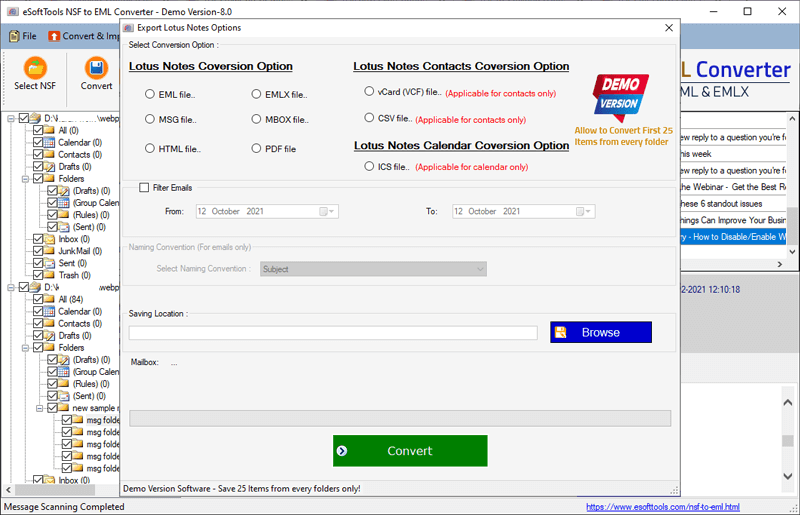
- Choose the EML file for conversion from the list of files.
- Next, you can apply the options Email filter, Naming Convention and give the location where you want to save the EML file.
- Press the Convert button and start the conversion process.
Conclusion
Now you know the manual and automated methods of conversion and by reading the blog you can conclude that manual methods have limitations and there are chances of data loss in the manual methods. The automated method overcomes the limitations of manual methods and you can convert Lotus Notes emails in bulk.
Easy Steps to Know How to Export Lotus Notes Emails to EML File
Step1: Download & Launch NSF to EML Converter Software

Step2: Select NSF File
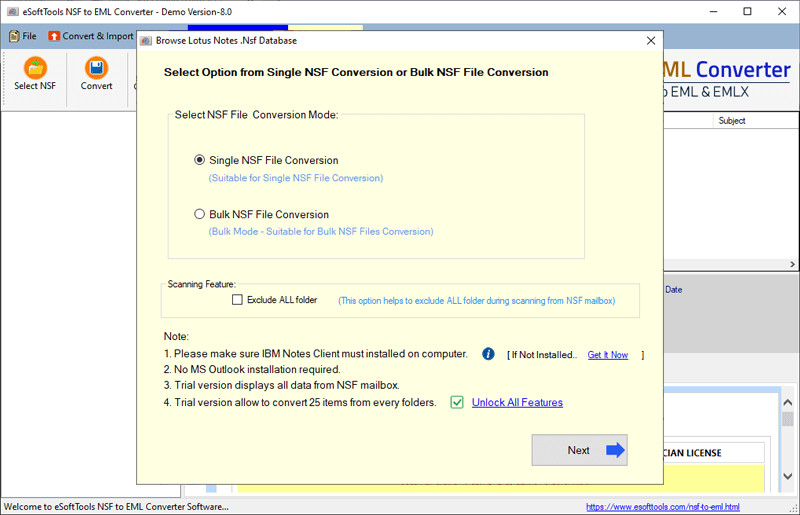
Step3: After selecting the NSF file, you can see the scanning process:
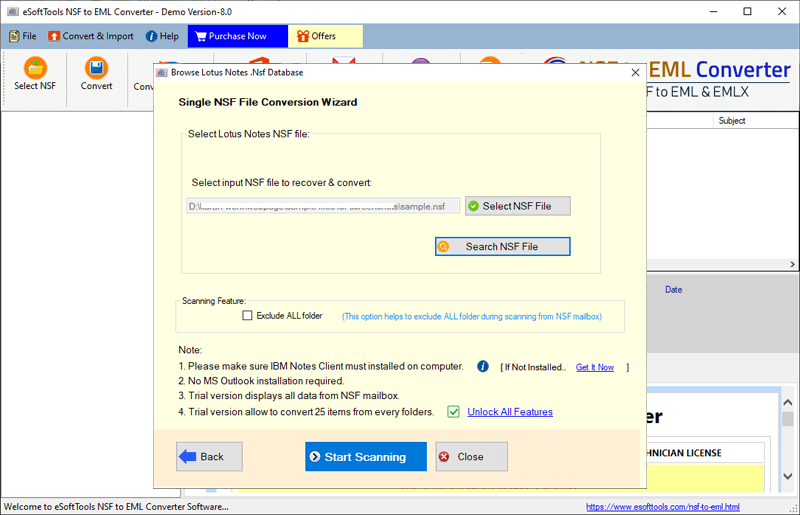
Step4: Now you can see the pop-up, scanning process completed

Step5: Now you can see the preview of all items of the NSF File
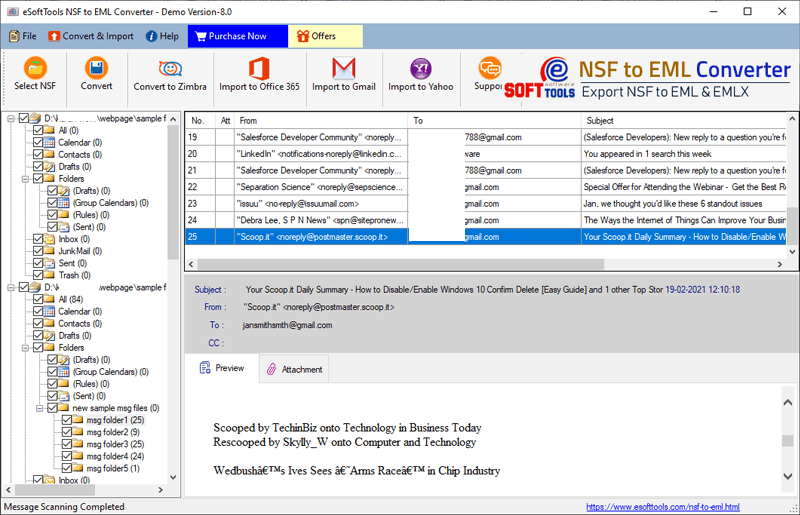
Step6: Click on the convert button from the menu bar to Export emails to EML/ EMLX/ MSG/ HTML/ PDF file format


No Comments yet!